
Why Crop a Photo Into a Circle?
Circular images show up everywhere online: profile pictures, app icons, team pages, and social media avatars almost always expect a round shape rather than the rectangular frame your camera actually captured. A circle crop draws attention to a face or subject, hides distracting corners, and gives otherwise ordinary photos a polished, consistent look when they sit next to other round avatars.
The tricky part is that most image editors treat "circle" as an afterthought - you either mask a shape on top of a rectangle, or you export a square and hope the platform crops it for you. Doing the crop yourself, with a transparent background, gives you a result you can drop into any design without surprises.
What You'll Need
You don't need photo-editing software for this. All you need is:
- The photo you want to crop, in JPG, PNG, or WEBP format
- A modern browser
- A couple of minutes
Everything below happens directly in your browser using Imagetoolsify's circle crop tool - no software to install, and your image is never uploaded anywhere.
Step-by-Step: Cropping a Circle in Your Browser
1. Upload Your Photo
Click "UPLOAD IMAGE" and choose a file from your device, or drag and drop it straight onto the editor. If you just want to see how the tool works first, click "Use demo image" to load a sample photo instantly.
2. Position the Crop Circle
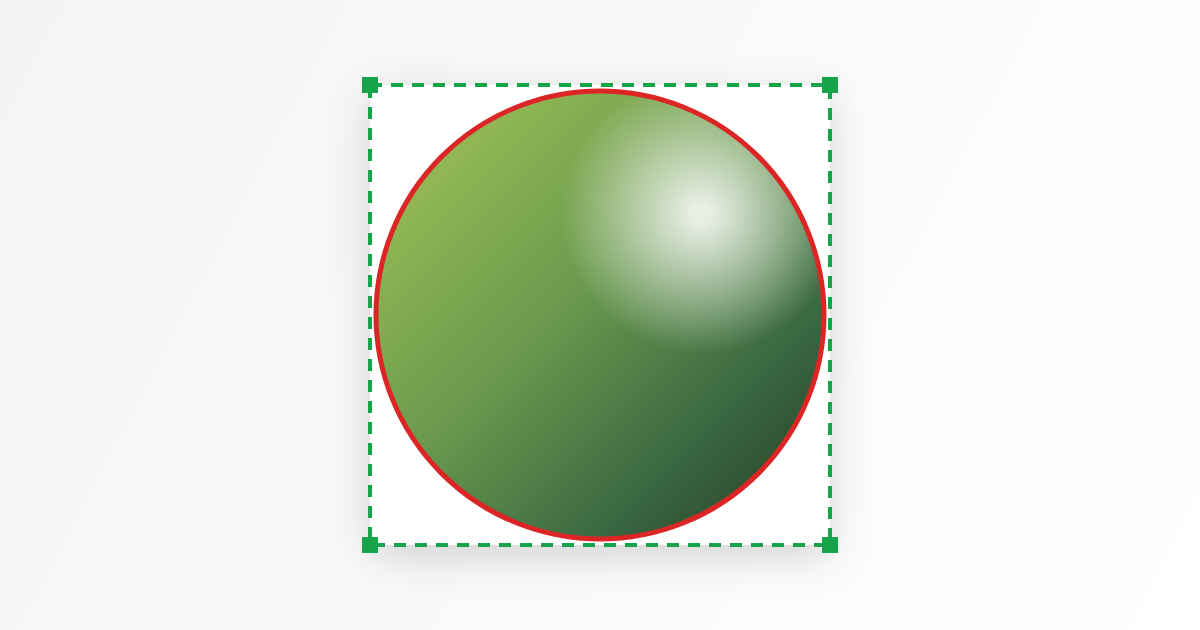
Once your image loads, you will see a square crop box with a circle traced inside it - that circle is exactly what ends up in your final export. Drag the box to reposition it, and resize from any corner or edge to make the circle bigger or smaller. Try to keep your subject centered, with a little breathing room around the edges so nothing important gets clipped.
3. Export as a Transparent PNG
When the circle looks right, click "CROP CIRCLE". The tool instantly cuts out the circular area and shows a preview with a checkerboard background - that checkerboard pattern just indicates transparency, it will not appear in your actual file. Click "DOWNLOAD IMAGE" to save the result as a PNG with a see-through background, ready to drop onto any color or photo behind it.
Getting a Clean Result: Tips for Sharper Circle Crops
A few small habits make a noticeable difference in the final image:
- Start with a high-resolution source photo. Circle crops throw away the four corners of your image, so cropping a small photo down further can leave you with a blurry result. Start bigger than you think you need.
- Center the subject, not the frame. A face or logo that is slightly off-center in the original photo often looks better nudged toward the middle of the circle, even if that means the crop is not perfectly centered on the original image.
- Leave a small margin. Cropping right up to the edge of a subject, like the top of someone's head, tends to look cramped. A little empty space around the subject reads as more intentional.
- Check it at actual size. A crop that looks fine zoomed in can look off once it is shrunk down to a 40px avatar. Preview it small before you commit.
Where to Use Your Circular Image
Once you have a transparent, circular PNG, it works almost anywhere a square photo would - just without the corners:
- Social media and messaging app profile pictures
- Team or "About Us" pages on a website
- App icons and favicons
- Overlays on top of banners, headers, or other photos
Because the background is transparent rather than a solid color, the same file will look correct whether it sits on a white page, a dark theme, or a colored banner.
Frequently Asked Questions
Does cropping reduce image quality?
Cropping itself does not compress or degrade the pixels you keep - it simply discards the pixels outside the circle. The exported image is generated directly from your original photo's resolution, so as long as you start with a sharp source image, the circular result stays just as sharp.
Can I crop a circle without transparency?
If you need a solid background instead of transparency, for example to match a specific brand color, you can open the transparent PNG in any image editor afterward and flatten it onto a colored background. Keeping the original export transparent gives you that flexibility, rather than locking you into one background color from the start.